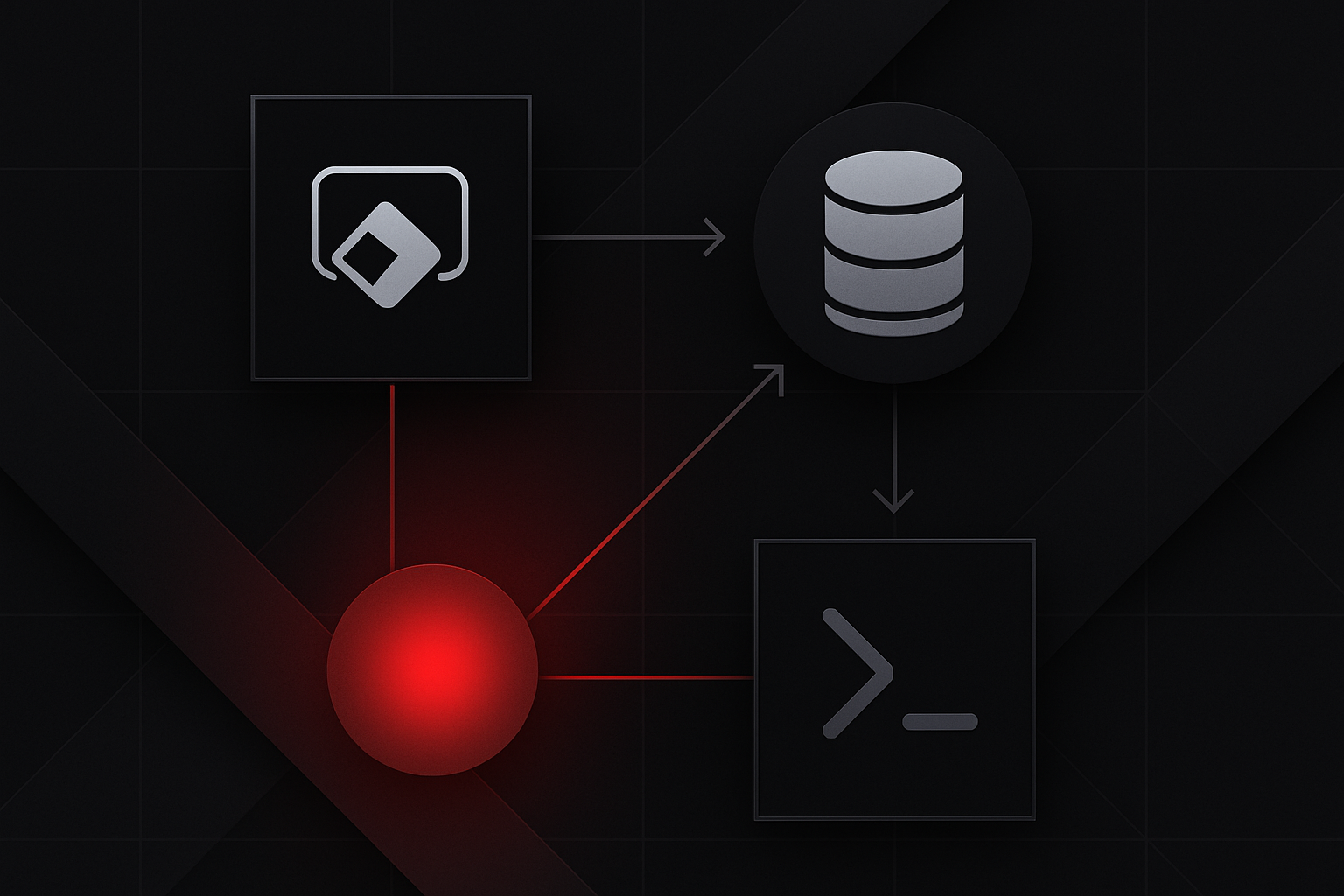
Your company's most critical data lives on a SQL Server instance tucked behind a firewall in a data center three floors below you. The operations team has built years of transactional history in that database, and your job is to build a Canvas App that field technicians can use to look up work orders, update job statuses, and log parts used — all from a tablet on the shop floor. The problem? That SQL Server has never seen the public internet, and it shouldn't. You need a bridge between Microsoft's cloud and your on-premises infrastructure that doesn't require you to punch holes in your firewall or move data you're not allowed to move.
That bridge is the On-Premises Data Gateway. It's not magic — it's a Windows service that runs on a machine inside your network, opens an outbound connection to Azure Service Bus, and relays requests between Power Platform cloud services and your local data sources. Understanding how it actually works, not just that it works, is what separates practitioners who can troubleshoot production issues from those who file support tickets and wait.
By the end of this lesson, you'll have a fully configured gateway installation connected to a real SQL Server database, a Canvas App that reads and writes through that connection, and enough troubleshooting knowledge to handle the failures that will inevitably happen at 3 PM on a Tuesday when the operations team is waiting.
What you'll learn:
Before diving in, make sure you have:
Before you install anything, spend five minutes understanding the communication model. It will save you hours of frustration.
The gateway does not work by opening an inbound port on your firewall. It doesn't expose your SQL Server to the internet. Instead, the gateway Windows service establishes an outbound, encrypted connection to Azure Service Bus endpoints using port 443 (HTTPS) and port 5671 (AMQP). When Power Apps needs data from your SQL Server, the request travels from Microsoft's cloud into Azure Service Bus, waits there, and the gateway service picks it up — because the gateway initiated the connection, not the other way around.
Think of it like a long-polling mechanism. The gateway is constantly asking Azure Service Bus, "Anything for me?" When a Canvas App user submits a query, the answer is yes — here's a SQL request. The gateway executes that request against the local SQL Server, packages the result, and sends it back through the same outbound channel.
The practical implications of this architecture:
No inbound firewall rules needed. Your security team will thank you. The gateway machine just needs outbound access to *.servicebus.windows.net on port 5671 and *.msappproxy.net on port 443.
Latency is real. Every query travels: Canvas App → Azure → Service Bus → Gateway machine → SQL Server → back through the same chain. For a field technician looking up a single work order, this is fine. For an app that fires 50 queries on screen load, you will notice it.
The gateway machine is a single point of failure unless you configure a cluster. We'll cover clustering later in this lesson.
Gateway resources matter. The gateway machine processes query results and handles encryption. A machine with 4 CPU cores and 8 GB RAM is a reasonable baseline for moderate load. If you're routing multiple data sources and dozens of concurrent users through one gateway, size up accordingly.
Microsoft offers two gateway modes: Standard and Personal. Personal mode only works for a single user and can't be shared across an organization or used with Power Automate flows or Power BI scheduled refreshes. Unless you're building a solo proof-of-concept that will never leave your laptop, install Standard mode. We'll use Standard throughout this lesson.
Navigate to https://aka.ms/opdg — this Microsoft shortlink always points to the current gateway installer. Download the GatewayInstall.exe file.
Run the installer on your designated gateway host machine. The account running the installer doesn't need to be the service account, but it does need local administrator rights on the machine.
During installation, you'll see a service account configuration screen. By default, the gateway runs as NT SERVICE\PBIEgwService. For most environments, this default works. If your SQL Server uses Windows Authentication and you need the gateway to authenticate with domain credentials, you'll need to change this to a domain service account — for example, CORP\svc-powerapps-gw — and grant that account the Log on as a service right through Local Security Policy.
Important: If you change the service account to a domain account for Windows Authentication pass-through, that domain account must also have
db_datareaderanddb_datawriter(or more granular) permissions on the SQL Server databases it will access. Create the service account and provision database access before you change the gateway service account — not after.
After installation, the gateway configuration app opens automatically. Sign in with a Microsoft account that has Power Platform environment admin rights. Use the same account you use to administer your Power Platform environments — not a personal Microsoft account.
You'll be asked whether to register a new gateway or migrate/restore an existing one. Choose Register a new gateway on this computer.
Give the gateway a meaningful name. Don't call it MyGateway or TestGW. Use a convention like CORP-PROD-GW-01 — something that communicates environment (production vs. dev), location, and sequence number. You'll thank yourself when you're managing three gateways across two environments six months from now.
Set a recovery key. This is a passphrase you'll use if you ever need to move the gateway to a different machine or restore after a hardware failure. Store it in your password manager now. It cannot be retrieved later, and losing it means starting over.
Click Configure. The gateway will register with Azure and appear in the Power Platform Admin Center within a minute or two.
Go to https://admin.powerplatform.microsoft.com and navigate to Data → On-premises data gateways. Your newly registered gateway should appear with a green status indicator. If it shows as offline, the most common cause is a proxy server blocking the outbound connection — check with your network team that *.servicebus.windows.net is whitelisted.
With the gateway registered, you're ready to create the actual connection that your Canvas App will use.
Open make.powerapps.com and make sure you're in the correct environment. Navigate to Data → Connections → New connection.
Search for SQL Server in the connector list and select it. You'll see a connection dialog with several fields that are worth understanding, not just filling in:
Authentication Type offers several options:
Windows Authentication — the gateway service account's domain credentials are passed through to SQL Server. Only works if the gateway runs as a domain account with SQL access.SQL Server Authentication — a SQL login with username and password. Most common for production scenarios because it's explicit and auditable.Azure Active Directory Integrated — for Azure SQL databases, not on-premises SQL Server through a gateway.For our field technician scenario, we'll use SQL Server Authentication with a dedicated service login.
SQL Server name: Enter the SQL Server hostname or IP address exactly as the gateway machine can resolve it. If the gateway machine uses SQLSRV01\OPERATIONS to connect to the named instance, that's what goes here. Don't use localhost unless the gateway and SQL Server are on the same physical machine — and even then, use the actual hostname.
SQL database name: The specific database name, for example FieldOpsDB.
Username / Password: Your SQL login credentials.
Choose a gateway: Select the gateway you just registered from the dropdown. If you don't see it here, either the gateway is offline or your account doesn't have gateway admin rights — go back to the Power Platform Admin Center and add yourself as a gateway admin.
Click Create. Power Apps will attempt to establish a test connection through the gateway to your SQL Server. Success means you'll see the connection appear in your connections list with a green check. Failure at this stage almost always means one of: wrong server name, wrong credentials, SQL Server not allowing the connection from the gateway machine's IP, or the gateway service is not running.
This is a nuance worth understanding. The connection you just created is a shared connection resource that lives in your Power Platform environment's data layer. It's not embedded in your Canvas App — the app references it. This means:
For production apps, consider who owns the connection. If it's under your personal account and you leave the company, the connection orphans. Create connections under a service account or at minimum document the owning account.
Now that the connection exists, let's build the work order lookup app that our field technicians need. We'll work with a SQL Server table called dbo.WorkOrders with this schema:
CREATE TABLE dbo.WorkOrders (
    WorkOrderID     INT IDENTITY(1,1) PRIMARY KEY,
    WONumber        VARCHAR(20) NOT NULL,
    AssetTag        VARCHAR(50) NOT NULL,
    Description     NVARCHAR(500),
    AssignedTech    VARCHAR(100),
    Status          VARCHAR(20) CHECK (Status IN ('Open','InProgress','Completed','OnHold')),
    Priority        TINYINT CHECK (Priority BETWEEN 1 AND 5),
    CreatedDate     DATETIME DEFAULT GETDATE(),
    CompletedDate   DATETIME NULL,
    Notes           NVARCHAR(MAX)
);
In your Canvas App studio, open the Data pane and click Add data. Search for SQL Server and select it. You'll see your existing connections — choose the one you just created. Power Apps will prompt you to select which tables to add. Select dbo.WorkOrders.
At this point, Power Apps has a reference to the table and knows its schema. But here's where understanding the connector's limitations becomes critical.
When you work with SharePoint lists or Dataverse, Power Apps can delegate filter and sort operations to the data source — meaning the data source handles the filtering, and only matching records are returned to the app. With SQL Server through the on-premises gateway, delegation works differently and more completely than with some other connectors, but you still need to understand the boundaries.
SQL Server through the gateway supports delegation for:
Filter() with standard comparison operators on most column typesSort() and SortByColumns()Search() on text columnsWhat it does not delegate:
CountRows() on a filtered collection without a corresponding server-side operationThe delegation limit matters because if your filter isn't delegated, Power Apps will pull up to 500 records (or 2000 if you've raised the limit in App Settings) and filter them client-side. For a table with 50,000 work orders, this means a technician searching for WO-2024-08812 gets back 500 random records filtered locally — probably missing the one they want.
Write your gallery's Items property like this to ensure delegation works:
Filter(
    WorkOrders,
    Status = StatusFilterDropdown.Selected.Value
    && (SearchInput.Text = "" || StartsWith(WONumber, SearchInput.Text))
)
The StartsWith() function delegates to SQL Server through this connector. !! If you used in for substring matching instead — SearchInput.Text in WONumber — that does not delegate. The yellow delegation warning triangle in Power Apps Studio is your early warning system. Take it seriously.
Pro tip: For the gallery on a work order lookup screen, always add a label below the gallery that shows
CountRows(Gallery1.AllItems)during development. If you're filtering a large dataset and seeing exactly 500 results, you have a delegation problem, not 500 matching records.
When you add dbo.WorkOrders as a data source, every record you pull includes every column — including Notes NVARCHAR(MAX). If your gallery only displays WONumber, AssetTag, and Status, you're still transferring potentially kilobytes of notes text per record across the gateway for no reason.
Use ShowColumns() to limit the data transferred:
Sort(
    ShowColumns(
        Filter(
            WorkOrders,
            Status <> "Completed"
            && AssignedTech = User().FullName
        ),
        "WorkOrderID",
        "WONumber",
        "AssetTag",
        "Status",
        "Priority",
        "CreatedDate"
    ),
    "Priority",
    Ascending
)
This is especially important for NVARCHAR(MAX) and VARBINARY columns. Pull detailed columns only when the technician drills into a specific work order, not on the list screen.
Updating a work order status and adding notes uses Patch(). Here's a realistic update for when a technician marks a job complete:
Patch(
    WorkOrders,
    Gallery_WorkOrders.Selected,
    {
        Status: "Completed",
        CompletedDate: Now(),
        Notes: Concatenate(
            Gallery_WorkOrders.Selected.Notes,
            Char(10),
            "[" & Text(Now(), "[$-en-US]yyyy-mm-dd hh:mm") & "] " & User().FullName & ": " & TextInput_CompletionNotes.Text
        )
    }
);
Notify(
    "Work order " & Gallery_WorkOrders.Selected.WONumber & " marked complete.",
    NotificationType.Success
);
Navigate(Screen_WorkOrderList, ScreenTransition.Fade)
The Patch() function against a SQL Server data source translates to a UPDATE statement executed through the gateway. The gateway picks up the request from Service Bus, runs the update against SQL Server, and returns success or an error.
Warning:
Patch()against SQL Server through the gateway does not automatically retry on transient failures. If the gateway is temporarily overloaded or SQL Server is briefly unavailable, thePatch()silently fails unless you check the return value. Always wrap writes in error handling:
If(
    IsError(
        Patch(
            WorkOrders,
            Gallery_WorkOrders.Selected,
            { Status: "Completed", CompletedDate: Now() }
        )
    ),
    Notify("Update failed. Please try again or contact support.", NotificationType.Error),
    Navigate(Screen_WorkOrderList, ScreenTransition.Fade)
)
Production apps cannot have a single gateway as a hard dependency. The gateway machine needs patching, reboots, and eventually dies. Configure a gateway cluster before go-live.
A gateway cluster is two or more gateway installations registered to the same logical gateway name. Requests are load-balanced across cluster members, and if one member goes offline, requests automatically route to remaining members.
To add a second node to your cluster, run the gateway installer on a second machine and choose Register a new gateway on this computer. Enter the same gateway name as your primary gateway and provide the same recovery key. Power Apps will recognize the name match and offer to add this machine to the existing cluster instead of creating a new one.
Gateway cluster members must:
Operational note: When you update the gateway, update all cluster members within the same maintenance window. Mixed-version clusters can behave unpredictably. The Power Platform Admin Center will flag your gateway as out-of-date — take these alerts seriously, as old gateway versions lose support over time.
The gateway isn't just for SQL Server. The same gateway installation can serve connections to:
For each additional data source type, the pattern is the same: install any required client libraries on the gateway machine, create a new connection in Power Apps pointing to your gateway, and select the appropriate connector type.
One practical consideration: driver versions matter. If you're connecting to an Oracle database and the Oracle Instant Client on the gateway machine is version 12c but the database is version 19c, you may encounter driver incompatibility errors that look like connection failures. Always match or exceed the database version with your client library version.
Let's put everything together. You'll build a functional work order management screen that reads from and writes to a SQL Server table through your configured gateway.
On your SQL Server, create a database called FieldOpsDB and create the dbo.WorkOrders table using the DDL from earlier in this lesson.
Insert some test data:
INSERT INTO dbo.WorkOrders (WONumber, AssetTag, Description, AssignedTech, Status, Priority)
VALUES
    ('WO-2024-00101', 'HVAC-UNIT-04', 'Annual inspection and filter replacement', 'Jordan Kim', 'Open', 2),
    ('WO-2024-00102', 'ELEC-PANEL-12', 'Tripped breaker investigation', 'Sam Rivera', 'InProgress', 1),
    ('WO-2024-00103', 'PUMP-STATION-07', 'Bearing replacement - scheduled', 'Jordan Kim', 'Open', 3),
    ('WO-2024-00104', 'HVAC-UNIT-09', 'Refrigerant recharge', 'Alex Chen', 'OnHold', 2),
    ('WO-2024-00105', 'GENERATOR-01', 'Monthly load test', 'Sam Rivera', 'Open', 4);
CREATE LOGIN fieldops_app WITH PASSWORD = 'Str0ngP@ssw0rd!';
USE FieldOpsDB;
CREATE USER fieldops_app FOR LOGIN fieldops_app;
GRANT SELECT, INSERT, UPDATE ON dbo.WorkOrders TO fieldops_app;
-- Do NOT grant DELETE unless your app needs it
Step 1: Create a new blank Canvas App (tablet layout) and add your SQL Server connection to dbo.WorkOrders.
Step 2: Add a screen called Screen_WorkOrderList. Add a Text input named Input_Search with HintText set to "Search by WO number...". Add a Dropdown named Dropdown_StatusFilter with Items set to ["All","Open","InProgress","Completed","OnHold"] and Default set to "All".
Step 3: Add a vertical gallery named Gallery_WorkOrders. Set its Items property to:
Sort(
    ShowColumns(
        Filter(
            WorkOrders,
            (Dropdown_StatusFilter.Selected.Value = "All" || Status = Dropdown_StatusFilter.Selected.Value)
            && (Input_Search.Text = "" || StartsWith(WONumber, Input_Search.Text))
        ),
        "WorkOrderID", "WONumber", "AssetTag", "Status", "Priority", "AssignedTech", "CreatedDate"
    ),
    "Priority",
    Ascending
)
Step 4: In the gallery template, add labels for WONumber, AssetTag, Status, and Priority. Add a colored rectangle behind the status label — use a Switch() on ThisItem.Status to return different fill colors (orange for InProgress, red for Open, grey for OnHold, green for Completed).
Step 5: Add a second screen Screen_WorkOrderDetail. Add a Form control named Form_WorkOrderDetail connected to WorkOrders. Set Form_WorkOrderDetail.Item to Gallery_WorkOrders.Selected. Set the form to Edit mode.
Remove all fields except Status, CompletedDate, and Notes. Add a Button with the text "Mark Complete" and set its OnSelect to:
If(
    IsError(
        Patch(
            WorkOrders,
            Gallery_WorkOrders.Selected,
            {
                Status: "Completed",
                CompletedDate: Now(),
                Notes: Concatenate(
                    Gallery_WorkOrders.Selected.Notes,
                    If(IsBlank(Gallery_WorkOrders.Selected.Notes), "", Char(10)),
                    "[" & Text(Now(), "[$-en-US]yyyy-mm-dd hh:mm") & "] Marked complete by " & User().FullName
                )
            }
        )
    ),
    Notify("Failed to update work order. Check your connection and try again.", NotificationType.Error),
    Refresh(WorkOrders);
    Navigate(Screen_WorkOrderList, ScreenTransition.Fade);
    Notify("Work order marked complete.", NotificationType.Success)
)
Step 6: On Screen_WorkOrderList, add a OnSelect to the gallery template that navigates to Screen_WorkOrderDetail.
Test the app. Try filtering by status, searching by WO number prefix, and marking a work order complete. Verify in SQL Server Management Studio that the Status, CompletedDate, and Notes columns updated correctly.
Symptom: The gateway appears in Power Platform Admin Center but shows a red offline indicator.
Causes and fixes:
On-premises data gateway service is running. If it's stopped, start it and investigate why it stopped (check Windows Event Viewer under Applications and Services Logs → Microsoft → On-premises data gateway).Test-NetConnection -ComputerName southeastasia.servicebus.windows.net -Port 5671 from the gateway machine. If it fails, your network team needs to whitelist that endpoint.Symptom: When you create the SQL Server connection, the test fails with a generic connection error.
Causes and fixes:
SQL Server Browser service is running on the SQL Server machine.Symptom: The gallery shows exactly 500 records regardless of filter values, and you know there are more matching records.
Fix: Open the formula bar for the gallery's Items property and look for the blue delegation warning icon. Click it to see which functions aren't being delegated. Common non-delegable patterns to replace:
| Non-delegable | Delegable alternative |
|---|---|
"open" in Lower(Status) |
Status = "Open" (exact match, case-insensitive by default in SQL) |
EndsWith(WONumber, "X") |
Restructure data to allow StartsWith or exact match |
Len(Notes) > 0 |
Not(IsBlank(Notes)) — test if this delegates; if not, add a computed bit column in SQL |
Symptom: No error notification appears, but checking SQL Server shows the row unchanged.
Causes and fixes:
ShowColumns() result that doesn't include the primary key. Patch() needs the primary key column to identify which row to update. Make sure WorkOrderID is always included in your ShowColumns() calls.SubmitForm() is being used instead of Patch(). If using SubmitForm(), verify Form_WorkOrderDetail.Mode is FormMode.Edit.Symptom: App response times increase gradually over days or weeks without any configuration changes.
Causes:
C:\Windows\ServiceProfiles\PBIEgwService\AppData\Local\Microsoft\On-premises data gateway. Implement log rotation or periodically archive old logs.You've covered a lot of ground. Here's the architectural picture you should now have in your head: Canvas App queries travel from Power Apps cloud services through Azure Service Bus to your gateway Windows service, which executes them against your on-premises SQL Server and routes results back through the same outbound channel. You've installed and registered a gateway, created a SQL Server connection, built delegation-aware queries, handled write errors properly, and configured clustering for high availability.
The most important production habits to take away:
ShowColumns() on list screens to avoid transferring large column values you don't needPatch() calls in IsError() checksWhere to go next:
The on-premises gateway is one of the more operationally demanding components in the Power Platform ecosystem, but once it's stable and clustered, it becomes nearly invisible infrastructure — exactly what good infrastructure should be.
Learning Path: Canvas Apps 101